Update firmware
A guided firmware update for your Poem/1 clock. About 10 minutes.
You will need: a computer, your clock and USB-C power.
1. Get the firmware ready
The latest firmware is v0.7.4. This page loads it into memory and sends it to your clock — you won’t need to handle any files.
(If you were an “early tester” then please email support for a special firmware version that will work with your clock.)
2. Unplug your clock
If your clock is connected to power, unplug it now. Don’t unplug it while the display is mid-update — wait for the screen to settle first.
3. Enter Wi-Fi setup mode
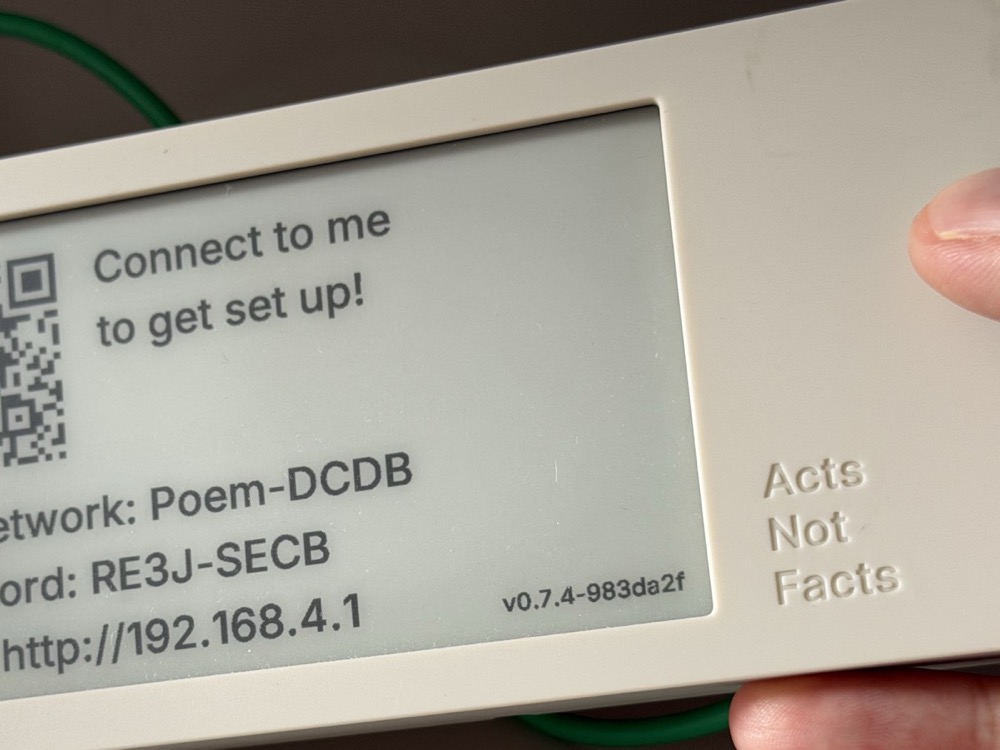
While holding down the top button, connect the clock to power. Keep holding until the “Connect to me” screen appears — about 4 seconds — then release.
If you see the “Composing...” screen instead, unplug the clock and try again.
4. Join your clock's Wi-Fi network
Using this computer, join the Wi-Fi network named on your clock’s screen (it starts with Poem-), with the password shown there.
The captive portal popup to configure your clock’s Wi-Fi will appear — ignore it and come back to this tab.
Your computer may warn that this network has no internet — that’s correct and expected. Choose to stay connected if asked.
On iPhone, stay connected to the clock’s Wi-Fi network by closing the captive portal and choosing the “Use Without Internet” option.
to get set up!
5. Install the firmware
Click the button below. Your browser will warn that “the information you’re about to submit is not secure” — this is expected (your clock’s network is local-only, and the firmware isn’t secret). Choose Send anyway.
Waiting for the firmware from step 1…
A new tab will open. It may look like nothing is happening. Wait for 20 seconds and the tab should update. Success looks like: “Update successful. Device rebooting now...”
On iPhone, there is no success screen. The only feedback is that your clock will reboot.
If that tab shows a connection error instead, check you’re still on the Poem- network, then try the manual method below.
Not working? Do it manually
- Save the firmware file to this computer (see step 1).
- Open http://192.168.4.1/update in a new tab.
- Click “Choose File”, select the saved file, and start the update.
6. All done
Your clock will restart itself when the update finishes — don’t unplug it while it’s updating. You can now rejoin your usual Wi-Fi network on this computer.
To check the update worked, look at the bottom right of the “Connect to me” or “Composing...” screen. If there’s a version number there, you’re on the new firmware — well done! (The old firmware doesn’t show a version number at all.)
If your clock shows “Connect to me” again after restarting, it needs its Wi-Fi set up: follow the Setup section of the manual.